


In trusted partnership with the KnowledgeFlow Cybersafety Foundation

Every day, teachers and students interact with technology in ways that often feel seamless and invisible. From the apps we use to the devices we rely on, complex systems of hardware, software, and networks work behind the scenes. Understanding these systems reveals how digital tools process, store, and share information, how networks connect devices, and how the Internet of Things operates, including the risks and responsibilities of connected systems.
Module 2: The Systems That Power Learning invites teachers to pause, learn, and reflect on the mechanics behind the technology in their classrooms. This module helps you understand how computers and networks work together, navigate the internet safely, troubleshoot devices, and apply basic coding and computational thinking concepts. You will explore network fundamentals, wireless connections, and VPNs. These lessons connect directly to everyday technology use and will help you engage with digital tools with clarity and understanding.
Scroll down to begin your PDday journey!
Contents
Part 1
All About Computers
Do you know what actually happens when a computer processes a file, runs a program, or how it works? In this submodule, you will explore the basic components of a computer, including hardware, software, and memory, and how they work together to process, store, and manage information. You will also learn how data is organized in files and folders, how storage locations function, and how system tools and user accounts help maintain performance and security. Practical strategies for file management and troubleshooting will help you keep devices running efficiently. By understanding these foundational concepts, you can model good digital habits, troubleshoot effectively, and help students become confident, responsible users of technology.
Note: Click the video to play it or click the “Watch on YouTube” button on the bottom left of the video to view it directly in YouTube.
Test Your Knowledge!
Reflecting Back
You may have noticed that students rarely troubleshoot problems on their own, often lose files, or fail to save and organize their work properly. Many are unaware of what happens behind the screen and do not understand how computers process, store, and retrieve information. By helping students understand the basics of how computers work, including memory, storage, file organization, and system tools, they can develop the skills to manage their work effectively and solve minor issues independently. Providing a clear framework for saving, organizing, and troubleshooting files can prevent unnecessary frustration and help students approach technology with confidence and responsibility.
How to Check for and update device software
Part 2
Internet Basics
Every message you send, every search you make, and every file you access travels across a vast network you can’t see. In Internet Basics, you will explore how devices connect and communicate online, how data moves from place to place, and the tools that keep students and devices safe. You will examine communication methods such as texting and email, learn key internet concepts such as ISPs, IP addresses, and URLs, and discover practical strategies for managing networks, troubleshooting connectivity issues, and supporting safe, responsible online communication.
Note: Click the video to play it or click the “Watch on YouTube” button on the bottom left of the video to view it directly in YouTube.
Test Your Knowledge!
Reflecting Back
When students work on a research project, they may be able to find answers online, but few understand what happens behind the scenes: how information travels across the internet and how networks connect devices. They also frequently use text messaging and email, but are often unaware of the complex systems that enable these functions. Helping them see these processes can change how they interact with technology. For example, showing how certain browsers and platforms use content filters to narrow results can help students focus on exactly the information they need, and walking through how messages move securely from one device to another. Extending these experiences by giving students opportunities to explore how networks operate, see the protections that keep devices and data safe, and practice troubleshooting common issues can help them develop a deeper understanding, use technology more responsibly, and approach digital tools with confidence.
Part 3
Internet of Things
When you look around a classroom, many devices, from tablets and smartboards to environmental sensors, are connected to the internet, working together to support learning. The Internet of Things, or IoT, describes how these everyday objects use sensors, actuators, and networks to collect and share data automatically. In this submodule, you will explore how IoT devices function, how connectivity options like Wi-Fi, Bluetooth, and cellular networks affect their performance and security, and why practices like strong passwords and regular updates are essential for keeping systems safe. Understanding these processes shows how IoT can enhance learning, provide real-time data, and create interactive, hands-on experiences while allowing educators to integrate technology responsibly and confidently.
Note: Click the video to play it or click the “Watch on YouTube” button on the bottom left of the video to view it directly in YouTube.
Test Your Knowledge!
Reflecting Back
Introducing an IoT system into the classroom can bring exciting opportunities, but it can also create vulnerabilities if devices and networks are not correctly configured and secured. When reflecting on connectivity, think about how the devices will communicate with each other and with your network, and whether your Wi-Fi or other connections can handle continuous data flow without interruptions. For privacy and security, consider what data the devices collect, who can access it, and how you will protect it using strong passwords, regular updates, and secure networks, including guest networks if appropriate. Reliability is another key factor: devices should function consistently so students can engage with lessons without disruption, and having a plan for troubleshooting minor issues can prevent small problems from derailing activities. By anticipating these challenges and implementing safeguards, you can design learning experiences that are both safe and interactive, allowing students to explore real-time data, experiment with connected tools, and gain a hands-on understanding of how IoT systems operate.
Part 4
Coding and Debugging
Coding and programming are everywhere, from the apps and games students use to the tools that power classroom technology. In this submodule, you will explore the foundational principles of computational thinking, including decomposition, pattern recognition, algorithmic thinking, and abstraction, and see how these skills underpin coding. You will also dive into key programming concepts such as variables, loops, conditionals, and functions, and learn how to represent and execute algorithms using step-by-step instructions or pseudocode. Debugging strategies and error types will help you guide students in identifying, testing, and correcting mistakes, while unplugged activities provide a hands-on way to model coding concepts before moving to digital tools. By understanding these processes, you can help students build logical problem-solving skills, strengthen digital literacy, and connect coding to real-world applications and creative problem-solving.
Note: Click the video to play it or click the “Watch on YouTube” button on the bottom left of the video to view it directly in YouTube.
Test Your Knowledge!
Reflecting Back
Many students think of coding as something that only happens on a computer, but the core skills of logical thinking, problem-solving, and computational reasoning can be developed in many ways. Reflecting on your classroom, you might consider unplugged activities, such as step-by-step algorithms on paper, flowcharts, or programming a partner to complete a task, which allow students to practice coding logic without any technology. Digital tools, like block-based programming platforms or simple robotics kits, can then extend these experiences, giving students immediate feedback and opportunities to debug and iterate. By providing both hands-on and digital experiences, you help students develop a deeper understanding of how algorithms work, build resilience in problem-solving, and strengthen the foundational skills that underpin computational thinking.
To complete this module and receive your credit, please complete the following quiz and receive a grade of at least 75% to pass.
PDday.ca Module 2 Quiz
Lesson Plans
PDday.ca Lesson Plans for your classroom
Explore our full collection of digital media literacy and cybersafety lesson plans designed specifically for K–12 classrooms, fitting effortlessly into your existing schedule and curriculum. Each lesson is engaging, easy to deliver, and intentionally designed to be completed in 45 minutes or less; making classroom integration simple and stress-free.
PDday.ca Teaching Materials
Here are three slide shows, filtered by grade range (Grades 9–12, 5–8, and 1–4), that you can add straight into Google Classroom. These slideshows make it easy for you to turn the information into teachable lessons with ready-to-go slides so that students can become the experts themselves. You can present them in class or share them with students and parents to explore on their own.
PDday.ca Class Activities
Here are lesson activities you can use directly in the classroom and upload to Google Classroom. There is a teacher version and a student version that can be directly handed out. This version works as a teacher guide or can be shared with students for easy use. The activities are curriculum-aligned and designed to deepen students’ understanding of cybersafety concepts. They are organized by grade range (Grades K-4 and Grades 5-12) and conveniently included in a single document for easy access.
Curriculum Alignment for Teachers
We have streamlined the integration of our online materials into your curriculum with a comprehensive guide. This guide helps educators align our resources with provincial standards, making it easy to incorporate our content into lesson plans while meeting educational outcomes. By filtering by province, grade, and course, educators can find the exact resource or lesson plan needed to include cybersafety education.
Tip Sheets & Guidebooks
Malware
Malware Infosheet
Secure Networks
How to Secure Your Home Network
Creating a Guest Network Tip Sheet
Troubleshooting
Troubleshooting Checklist
Online Research
Advanced Searches Tip Sheet
Browser Bookmarks Infographic
IoT Security
IoT Security Tip Sheet
Additional Courses
CyberBytes
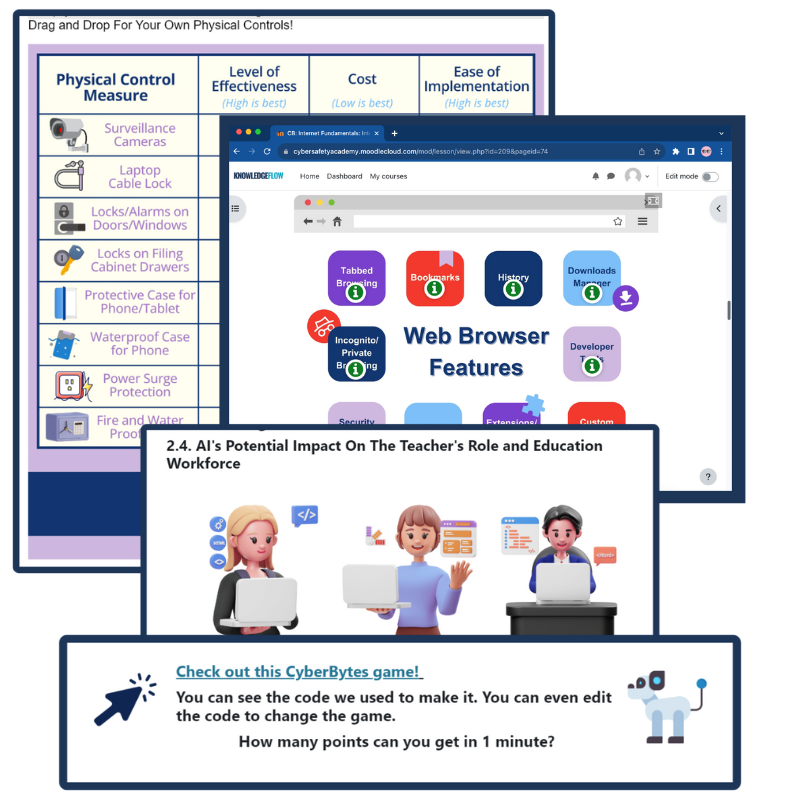
The CyberBytes Program is a free, self-paced course created exclusively for K-12 educators in Canada, designed to fit your schedule and enhance both your personal and professional growth. Developed by certified cybersecurity experts, this program empowers you to create engaging, tech-savvy classrooms while equipping you and your students with the skills needed to thrive in an ever-evolving digital landscape.
If you would like to…
- Further expand your knowledge on how computers process information, networks, data, coding, computational thinking, and all other topics we have covered above;
- Obtain cross-curriculum ready-to-use lesson plans, classroom posters and checklists, student resources, tipsheets, and other external resources;
Please go to ICTC’s online CyberBytes course and complete the Cyber Backbone module by clicking the button below.

The Information and Communications Technology Council (ICTC) is a neutral, not-for-profit national centre of expertise with the mission of strengthening Canada’s digital advantage in the global economy. For over 30 years, and with a team over 100 experts, they have delivered forward-looking research, practical policy advice, and capacity-building solutions for individuals and businesses. ICTC’s goal is to ensure that technology is utilized to drive economic growth and innovation and that Canada’s workforce remains competitive on a global scale. ICTC’s PDday is funded by the Government of Canada’s CanCode Initiative.
 English
  French
  Chinese
  Spanish
  Ukrainian